releases.shpreview
Harvey/Release Notes

Release Notes

Mon
Wed
Fri
JunJulAugSepOctNovDecJanFebMarAprMayJun
Less
More
Releases85Avg26/mo

Note: This update will roll out in phases. You’ll see the changes in your workspace by June 17th, 2026.

What's New

Harvey now supports direct .pst file uploads in both Vault and Assistant conversations. Once uploaded, Harvey will automatically extract and index every email in the PST archive, preserving Outlook folder structures and processing attachments (including ZIP files).

Why it Matters

Legal teams routinely receive client email archives as .pst file exports for investigations, discovery, due diligence, and internal reviews. With native PST support, lawyers can drop an archive directly into Vault or an Assistant conversation and immediately work across thousands of emails without any preprocessing. This eliminates a common bottleneck in matters where time-sensitive access to complete email history is critical.

How to Use

In Vault:
  • Navigate to the relevant Vault project and upload your .pst file as you would any other document.
  • After uploading, Harvey will automatically extract all emails in the background. This may take a few seconds to several minutes depending on archive size.
  • Once extraction is complete, a new subfolder will appear named after your PST file, containing each email as an individual file.
  • The extracted emails are now ready to query. The original .pst file remains in your folder for reference but is not queryable.
In Assistant:
  • Upload your .pst file directly into an Assistant conversation.
  • Harvey will extract and process the emails in the background.
  • Once processing is complete, the original .pst file will be replaced by the extracted emails, which you can query across immediately.

Notes & Limitations

  • Email attachments are preserved and extracted automatically, including the contents of any ZIP files.
  • Extracted emails count toward your Vault project's file limit. If the limit would be exceeded, extraction is skipped entirely.
  • Harvey supports .pst files up to 4 GB.

What's New

Space Admin is a new role in Harvey's permission model for Spaces, sitting between Connection Admin and Space Collaborator. It lets Connection Admins delegate day-to-day Space management — membership, requests, roles, and settings — to a trusted user without granting org-wide access.

Note: Existing Space Leads will be automatically assigned the Space Admin role with this release.

Why it Matters

Connection Admins at organizations with multiple active Spaces can face overhead managing join requests and user access across every matter or engagement. Previously, there was no way to delegate that operational work without granting broader admin access.

The Space Admin role closes that gap. A Connection Admin can now designate a trusted person (such as a matter lead, paralegal, or legal ops coordinator) to run a specific Space day-to-day, while retaining full governance at the connection level.

How to Use

When you create a new Space, you are automatically assigned the role of Space Admin. Additionally, a Connection Admin or existing Space Admin can assign the role using the Space’s invite modal or through the External Collaboration settings page.

Using the Invite Modal
  • Open the Space you want to assign an admin for.
  • Select Invite.
  • Find the user you want to designate as Space Admin.
  • Select the role drop-down menu and choose Space Admin.
Using the External Collaboration Settings Page
  • Go to Settings → External Collaboration.
  • Select Spaces, then find the Space you want to assign an admin for.
  • Select Users.
  • Find the user you want to designate as Space Admin.
  • Select the role drop-down menu and choose Space Admin.

Managing your Space

Once a user has been given the Space Admin role, they can:

  • Approve or deny join requests via Spaces → Requests
  • Invite users to the Space
  • Adjust user roles and remove users within the Space
  • (Hosting-side only) Configure Space settings via the Customize option in the Space header

FAQs

Q: What's the difference between Space Admin and Connection Admin?

A Connection Admin manages an entire external relationship (a Connection) and all the Spaces within it. A Space Admin is scoped to a single Space — they can manage that Space's members and settings, but cannot act across other Spaces or establish new external connections.

Q: Can someone on the external (client or counterparty) side be made a Space Admin?

No. Each organization controls its own roles within a Space. A law firm cannot assign a Space Admin role to someone at a client company, or vice versa.

Q: Can a Space Admin invite external collaborators from a new organization?

No. Space Admins can only add people to a Space once the external connection between the two organizations has already been established by a Connection Admin. They cannot initiate new cross-organization connections.

What's New

Unified History connects the Harvey web app and the Word Add-In so you can move between both platforms without losing context. Your Word threads now live alongside your web threads in your web app History page, and the work you start in one place follows you to the other. You can now:

  • See Word threads in your web history. All Harvey for Word threads now appear in your history feed in the web app, both in User history and Workspace history.
  • Move between Word and the web app seamlessly. When you export a document from the web app to Word, your full web app thread will carry over to the Word add-in so you can continue where you left off.
  • Share Word threads with teammates. Send a web link to a Word thread to anyone with web app access, no Word add-in required.

Why It Matters

Before this release, Harvey for Word activity was not available from the history tab in the web app. With Unified History, your conversation history lives in one place.

You get a complete view of Harvey usage across Word and Web — useful for finding past work, sharing with colleagues, and keeping an audit trail — without switching between platforms.

How to Use

View and Share Word Threads in the Web App

  • Start a thread in Harvey for Word as usual.
  • Open your History page in the Harvey web app. Your Word threads will appear alongside your web threads.
  • Select any entry to open the thread view. You’ll be able to see prior queries and a snapshot of the document as it was when the query was made.
  • To share, open the thread and send the web link to a teammate.

Continue a Thread From the Web App in Word

  • Open the document in the Harvey web app.
  • Export it to Word.
  • Your full thread will carry over into the Word add-in, including context, prior queries, and document state.
  • Continue working in Word right where you left off.

Notes & Limitations

  • Document snapshots reflect the latest known state. The document shown within your History is the version captured at the time of your last query. Suggestions you applied or rejected after that point are not reflected. The snapshot updates each time you submit a new query in Word.
  • Read-only in the web app. You can view and share Word threads from the web app, but you cannot continue, reply to, or edit them there in this release.
  • Older threads will not have a document snapshot. The document snapshot panel will only appear for threads created after the Unified History launch. You won't be able to view document snapshots for threads that were created before launch.

FAQs

Can I respond to a Word thread from the web app?

Not yet. Word threads are view-only in the web app in this release, so users can view and share Word threads but cannot respond, continue, or edit from the web app.

Will Unified History include Outlook threads?

Not in this release. Outlook threads are planned for when Agentic Outlook launches later this month.

What's New

Harvey's Library now supports bulk prompt uploads. Library admins can upload up to 500 prompts at once using a formatted CSV file, rather than adding prompts one at a time.

Key additions in this release include:

  • A Bulk Upload button in the Library's Prompts tab
  • Step-by-step in-product instructions surfaced during the upload workflow
  • A downloadable CSV template to guide correct formatting

Why It Matters

Building out a prompt library at scale previously required admins to create and add each prompt one at a time. Bulk prompt upload eliminates that bottleneck. Admins can now prepare, review, and upload an entire prompt set in a single workflow, making large-scale Library prompt management significantly faster.

How to Use

  • Navigate to the Library and select the Prompts tab.
  • Click the Bulk Upload button.
  • Click Download CSV template and fill it out with your prompt data.
  • Drag and drop the completed CSV file into the upload area, or use the file picker.
  • Submit the file to upload all of your prompts at once.

Notes & Limitations

  • Access: Only Library admins can access Bulk Upload. Standard users do not see this option.
  • CSV file size limit: 1 MB per upload.
  • Prompt limit: Up to 500 prompts per CSV file. For larger prompt libraries, consider splitting your content across multiple uploads.
  • Format: Use Harvey’s downloadable template to avoid formatting errors.

FAQs

What happens if my file has formatting errors? Harvey will surface errors and missing required fields during the upload flow so that you can review and correct them before proceeding. Use the downloadable CSV template as your starting point to minimize formatting issues.

Note: This update will roll out in phases. You’ll see the changes in your workspace by June 24th, 2026.

What’s New

We’ve added a new US Case Law data source in Harvey to provide comprehensive U.S. case law coverage. With this addition, Harvey now includes millions of U.S. cases available at no cost, streamlining research workflows and reducing the need to switch between external tools.

This coverage includes:

  • Federal and state appellate courts, including the U.S. Supreme Court, state supreme courts, and intermediate appellate courts
  • Federal district courts across all jurisdictions
  • State trial courts in major jurisdictions, including California, Delaware, and others
  • Federal and state statutes and regulations, accessible through Harvey’s U.S. public knowledge source and web search

Why it Matters

With this US Case Law knowledge source, you can conduct legal research and receive results grounded in relevant court opinions—all within a single platform. You can filter and search across specific jurisdictions, view full case text directly in Harvey, and incorporate case law into custom Workflow agents and the Word Add-In.

The US Case Law knowledge source supports key platform capabilities, including jurisdictional filtering, Multi-KS querying, Deep Analysis, integration with Agent Builder, and in-platform case viewing.

How to Use

Learn how to use this knowledge source in our US Case Law article.

FAQs

Q: Is US Case Law be automatically enabled for all workspaces?

Yes, this is a free offering that customers will receive by default. Admins can always choose to adjust knowledge sources enabled in their workspace under settings.

Q: Is the US Case Law knowledge source meant to be a full replacement for other legal research databases?

No, this is meant to be a complement to other research tools users rely on. Generally, users can use the US Case Law knowledge source for initial queries, as well as embedding in other Harvey platform features outside of Assistant.

Q:What are known limitations of the knowledge source?

The US Case Law knowledge source does not contain unpublished opinions and may have thinner coverage for certain state court decisions. The Ask LexisNexis integration will continue to provide the most comprehensive case coverage, along with Shepard's® citations.

What's New

We’ve added Opus 4.8 to the model selector in Harvey. Opus 4.8 builds on Opus 4.7 with gains in legal accuracy, output quality, and self-review behavior.

Learn more about our evaluation of this model in our blog post for Opus 4.8.

Why It Matters

Opus 4.8 delivers improvements across three areas:

  • Legal accuracy: More reliable identification of case captions, parties, statutory provisions, and applicable doctrinal frameworks.
  • Output calibration: Responses are better sized for the task, not over- or under-explained.
  • Self-review behavior: Opus 4.8 often reviews and revises its own outputs before returning an answer, which leads to stronger performance on drafting tasks.

For most workflows, Auto mode continues to select the right model for you, but model selection is available if you want more direct control.

This update ensures Harvey adapts to different types of legal work without changing how you normally use it.

How to Use

Open Model Selector in Assistant, Vault, or Workflow Builder to select Opus 4.8 from the list of models. Admins can manage access through Access Control & Permission Management.

Important: Both models require the Model Selector; Opus 4.8 is only available with Claude permissions enabled. If you don’t see the Model Selector, contact your workspace admin or Customer Success Manager.

What's New

Harvey’s updated playbook editor makes it easier to build, organize and manage rules. Updates include:

  • Side panel for rule management: Add, reorder, and delete rules from a dedicated side panel.
  • Search and rename: Search across all rules, and quickly rename playbooks or individual rules.
  • Rich-text editing: Use the updated editor to refine positions and highlight key information for your team.
  • Add new position types: Add standard, fallback, or unacceptable positions, plus inline comments.
  • Harvey suggestions: Ask Harvey to improve your positions for a specific rule.

Why It Matters

The new editor gives you more structure and flexibility to capture the full nuance of your legal positions and makes it easier than ever to update your playbooks.

How to Use

Users with Playbook creator or manager permissions will see the new editor automatically.

Navigate to Settings → Playbooks, and you’ll be able to see the new editor experience once you click into a Playbook.

What's New

We've expanded our global legal knowledge network with over 160 new sources for several jurisdictions.

Note: If you already have access to a listed Knowledge Source (for example, Bolivia), any additional data sources included in this release will be available to you automatically.

Why It Matters

Answers will be grounded in authoritative, jurisdiction-specific materials and returned with precise citations.

How to Use

Follow our steps for applying sources in Regional Knowledge Sources Overview.

List of New Data Sources

Tip: Quickly search for a source by pressing Ctrl + F (or Command + F on Mac) to pull up a search bar on the page.

Algeria

  • L'entrepreneur algérien
  • Secrétariat Général du Gouvernement (SGG)
  • المحكمة العليا

Armenia

  • Հայաստանի Հանրապետության իրավական տեղեկատվական համակարգ (ARLIS)
  • Վարչական դատարան — էլեկտրոնային համակարգ

Australia

  • Australian Securitisation Forum (ASF)
  • Australian Banking Association (ABA)
  • Australian Payments Network (AusPayNet)

Bahrain

  • Bahraini Legislations

Bangladesh

  • Supreme Court of Bangladesh

Belgium

  • National Office for Social Security (RSZ)
  • Nationale Arbeidsraad (NAR)
  • European Data Protection Board
  • Raad voor Vreemdelingenbetwistingen (RvV)
  • Arrestendatabank
  • Flemish Government
  • Digitaal platform van de Vlaamse bestuursrechtscolleges
  • Council of State
  • Commissie voor Boekhoudkundige Normen (CBN) / Commission des Normes Comptables (CNC)
  • Belgian Competition Authority
  • Vlaams Parlement
  • Commissie voor de Regulering van de Elektriciteit en het Gas (CREG)
  • Federal Public Service Employment, Labour and Social Dialogue (FPS ELSD)
  • KU Leuven Libraries of Law and Criminological Sciences
  • Gegevensbeschermingsautoriteit (GBA)

Brazil

  • Tribunal de Justiça do Rio de Janeiro (TJRJ)
  • Instituto Nacional da Propriedade Industrial (INPI)
  • Conselho Administrativo de Recursos Fiscais (CARF)
  • Conselho Administrativo de Defesa Econômica (Cade)

Bulgaria

  • Държавен вестник на Република България

Canada

  • Cour supérieure du Québec

Chile

  • Tribunal Constitucional
  • Ministerio de Vivienda y Urbanismo

China

  • 国家市场监督管理总局反垄断执法一司
  • 国家知识产权局
  • 全国人民代表大会 (NPC)
  • 国家税务总局
  • 中华人民共和国海关总署
  • 国家版权局
  • 国家外汇管理局
  • 商务部(MOFCOM)

Columbia

  • Superintendencia de Sociedades
  • Ministerio de Justicia y del Derecho
  • Comisión de Regulación de Energía y Gas (CREG)

Costa Rica

  • Sistema Costarricense de Información Jurídica (SCIJ)

Croatia

  • Narodne novine d.d.

Cyprus

  • Central Bank of Cyprus (CBC)
  • Official Gazette of Republic of Cyprus
  • Cyprus Securities and Exchange Commission (CySEC)

Czech Republic

  • Česká národní banka (ČNB)
  • Úřad pro ochranu hospodářské soutěže (ÚOHS)

Denmark

  • Ankenævnet for Forsikring
  • Den juridiske vejledning
  • Folketingets Ombudsmand
  • Lægemiddelstyrelsen
  • Skatteankestyrelsen

Ecuador

  • Superintendencia de Competencia Económica (SCE)
  • Corte Constitucional del Ecuador

European Union

  • EFTA Surveillance Authority (ESA)
  • General Data Protection Regulation (GDPR)
  • Competition Cases
  • European Union

France

  • Welcome to France (Business France)
  • France Visas
  • Directions régionales de l’économie, de l’emploi, du travail et des solidarités (DREETS)
  • Vie Publique
  • France Travail
  • Centre des Liaisons Européennes et Internationales de Sécurité Sociale (Cleiss)
  • Code du travail numérique
  • Autorité des marchés financiers (AMF)

Germany

  • Bundespatentgericht
  • Dokumentations- und Informationssystem für Parlamentsmaterialien (DIP)

Greece

  • Επιθεώρηση Εργασίας
  • Άρειος Πάγος
  • Επιτροπή Λογιστικής Τυποποίησης και Ελέγχων (ΕΛΤΕ)

Hong Kong

  • Financial Services and the Treasury Bureau (FSTB)
  • Intellectual Property Department (IPD)

India

  • High Court of Gujarat
  • Insolvency and Bankruptcy Board of India (IBBI)
  • National Housing Bank (NHB)
  • Pension Fund Regulatory and Development Authority (PFRDA)

Ireland

  • Intellectual Property Office of Ireland (IPOI)
  • Health Products Regulatory Authority (HPRA)
  • Tailte Éireann
  • The Labour Court
  • Health and Safety Authority (HSA)
  • Property Services Regulatory Authority (PSRA)
  • Coimisiún na Meán
  • Legal Services Regulatory Authority (LSRA)

Italy

  • Commissione Nazionale per le Società e la Borsa (CONSOB)
  • Commissione di Vigilanza sui Fondi Pensione (COVIP)

Japan

  • 預金保険機構
  • 公正取引委員会(JFTC)

Malaysia

  • Malaysia Competition Commission (MyCC)
  • Perbadanan Insurans Deposit Malaysia (PIDM)
  • Labuan Financial Services Authority (Labuan FSA)
  • Companies Commission of Malaysia (SSM)
  • Jabatan Imigresen Malaysia (JIM)

Mauritius

  • Stock Exchange of Mauritius (SEM)
  • Mauritius Revenue Authority (MRA)

Mexico

  • H. Congreso del Estado de Sinaloa
  • H. Congreso del Estado de Jalisco
  • Congreso de la Ciudad de México
  • Comisión Nacional de Seguros y Fianzas (CNSF) - Circular Única de Seguros y Fianzas (CUSF)
  • Banco de México

New Zealand

  • Commerce Commission
  • Financial Dispute Resolution Service (FDRS)
  • New Zealand Banking Association (NZBA)

Philippines

  • Philippine Deposit Insurance Corporation (PDIC)
  • Bureau of Internal Revenue (BIR)

Poland

  • Sejm

Portugal

  • Autoridade Tributária e Aduaneira - Informação Fiscal
  • Jurisprudência Arbitral Administrativa
  • Centro de Arbitragem Administrativa (CAAD)

Singapore

  • Personal Data Protection Commission
  • Infocomm Media Development Authority (IMDA)
  • Life Insurance Association Singapore (LIA)
  • Ministry of Law (MinLaw)
  • Competition and Consumer Commission of Singapore
  • The Consumers Association of Singapore (CASE)
  • Republic of Singapore Government Gazette

Slovenia

  • Uradni list Republike Slovenije
  • Pravni informacijski sistem Republike Slovenije (PISRS)

South Africa

  • Bills Currently in Parliament

South Korea

  • 한국금융투자협회 (KOFIA)
  • 금융위원회 금융정보분석원 (KoFIU)

Spain

  • Dirección General de Tributos

Sri Lanka

  • Insurance Regulatory Commission of Sri Lanka (IRCSL)
  • Colombo Stock Exchange (CSE)

Sweden

  • Kollegiet för svensk bolagsstyrning

Switzerland

  • Eidgenössisches Institut für Geistiges Eigentum (IGE)
  • Swissreg

Taiwan

  • 金融監督管理委員會銀行局
  • 臺灣集中保管結算所

Thailand

  • สำนักงานป้องกันและปราบปรามการฟอกเงิน

Turkey

  • Sigortacılık ve Özel Emeklilik Düzenleme ve Denetleme Kurumu (SEDDK)

United Kingdom

  • The Prescription Medicines Code of Practice Authority (PMCPA)
  • Competition Appeal Tribunal
  • National Storage Mechanism (NSM)
  • Scottish Parliament Reports
  • The Scottish Parliament
  • The Scottish Government
  • Registers of Scotland
  • FCA Handbook

United States

  • Internal Revenue Service (IRS)
  • U.S. Environmental Protection Agency (EPA)
  • Arizona State Legislature
  • Rhode Island General Assembly
  • Vermont General Assembly
  • Nebraska Legislature
  • West Virginia Legislature
  • North Carolina General Assembly (NCGA)
  • Louisiana Legislature
  • Maine State Legislature
  • Consolidated Laws of New York
  • D.C. Law Library
  • Commodity Futures Trading Commission (CFTC)
  • The Florida Senate
  • Office of the Comptroller of the Currency (OCC)
  • Kentucky General Assembly
  • The General Court of the Commonwealth of Massachusetts
  • Revisor of Missouri
  • The Florida Statutes
  • Virginia Legislative Information System (LIS)
  • Minnesota Legislature - Office of the Revisor of Statutes
  • Florida Attorney General's Office
  • Texas Office of the Attorney General
  • North Dakota Legislative Branch

Vietnam

  • Sở Giao dịch Chứng khoán Thành phố Hồ Chí Minh (HOSE)

What's New

This release adds three capabilities to Playbook reviews:

  • Review Mode feature: Choose how strictly Harvey applies your playbook positions during a review. Select Strict to push for the best terms or Permissive to accept fallbacks and close deals faster.
  • Provisions Not Covered by Playbook feature: Harvey now flags contract provisions that fall outside of your playbook's defined rules, surfacing them as escalation flags alongside standard suggestions. Examples include clauses that are unusual in structure, scope, or risk profile relative to what your team typically accepts or proposes.
  • Prompt library access for added context: You can now access and utilize prompts from your prompt library to add more context to your playbook review.

Why It Matters

These Playbook updates give you greater control over how Harvey supports your contract reviews, from negotiation strategy to deal-specific context.

Review Mode lets you instruct Harvey to hold to your standard positions early in a negotiation, or accept fallbacks when the priority is closing. The Provisions Not Covered by Playbook feature means that out-of-scope provisions get flagged. And by using your existing prompts, you can now easily give Harvey additional context to improve suggestions during playbook runs.

How to Use

Review Mode feature
  • Open a contract in Harvey for Word.
  • Navigate to Playbooks and select the playbook you’d like to run.
  • When you select Run playbook, the Customize playbook review panel will appear.
  • In the panel, navigate to Review mode and choose a mode:
  • Strict: Harvey pushes for the best terms based on standard playbook positions, flagging fallbacks and acceptable deviations accordingly.
  • Permissive: Harvey accepts fallback positions to reflect a deal-closing posture, reducing the number of flags.
  • Select Run playbook. Harvey will apply the selected review mode throughout.
Provisions Not Covered by Playbook feature
  • Run a Playbook review in Harvey for Word.
  • In the review panel, navigate to the Provisions Not Covered by Playbook section.
  • Expand the section to review escalation flags that Harvey has identified as outside playbook scope.
  • Review each flagged provision manually. These flags indicate that no playbook rule applies, not that the provision is unacceptable.
Using Prompt Library during a playbook run
  • Navigate to a Playbook review in Harvey for Word.
  • Select Additional context.
  • Select a prompt from your prompt library or create a new one.
  • Run the review. Harvey uses the prompt as context when generating suggestions.

FAQs

Can I change Review Mode mid-review?

Review Mode is set at the start of a review run. To change the mode, start a new review run with the updated selection.

What's New

Table Instructions let you set a single set of rules when creating a review table. Once set, those instructions are automatically applied to every new cell generated in the table.

  • Persistent, table-wide context: Instructions apply automatically to every new column, across the entire table.
  • Editable at any time: Update your instructions whenever your needs change.
  • Agent Builder support: Table instructions carry through when you save a review table as an agent.

Why It Matters

Previously, ensuring consistent formatting, language, or reasoning across a review table meant manually copying and pasting the same instructions into every column prompt. With Table Instructions, you only need to set your instructions once.

  • Set your rules once. Every new column you generate will follow them automatically.
  • Get consistent outputs across the entire table without repeated effort.
  • Use across practice areas: standardize party references in M&A, define redaction handling in litigation, enforce citation formatting in contract review, and more.
  • Instructions are surfaced in the Table Settings panel, so you always know what context is active.

How to Use

Create a Table With Instructions
  • Create a new review table.
  • Select Table Settings at the top of the review table.
  • In the Instructions field, describe how you want every cell response to behave; for example, how to refer to parties, how to handle redactions, or what reasoning framework to apply.
  • Select Save. All new columns generated in this table will automatically follow your instructions.
View or Edit Instructions
  • Select Table Settings at the top center of the table.
  • In the Instructions field, review or update your instructions.
  • Select Save.

Note: Updated instructions apply to all newly generated columns. Existing columns will not be updated.

Add Table Instructions to a Workflow
  • Create a new review table and add your table instructions.
  • Once your review table is ready, select Save as agent in the top right corner.
  • Enter your agent details, then validate or edit your columns and instructions.

Tip: To view or edit instructions on an existing agent, open the Agent Builder and click on the review table block. The Instructions field will appear at the bottom of the column builder panel.

Note: Instructions apply to all new cells going forward and do not affect previously generated cells.

FAQs

Do table instructions apply to every column in my table?

Yes, instructions apply automatically to every new cell generated in the table, across all columns. In the Reasoning section of each cell, you can view how the table instructions were leveraged to answer the query.

Can I set different instructions for a specific column?

Not yet. Currently, table instructions apply to all columns by default. In the future, you’ll be able to override them for a specific column by including alternative instructions directly in that column's prompt.

Are table instructions included when I export the table?

No, table instructions are currently not included during export.

Can I add table instructions to an existing agent?

Yes. Open Agent Builder, select the review table block and you'll see a section at the bottom to add or edit instructions.

What's New

Harvey for Word has been updated with a set of redlining improvements that make its suggestions more relevant to your contract, easier to understand, and faster to act on. Here’s what’s changed:

  • Improved document context: When you ask Harvey questions about your contract, it’s now able to identify the parties involved, determine which side drafted it, and detect the type of agreement being reviewed.
  • More targeted edits: Harvey now applies updated review logic that prioritizes risk flagging and drafting quality, rather than broad rewrites.
  • Clearer comments: Comments now explain why a change is being suggested, not just what was changed. This makes it easier to understand Harvey's reasoning and decide whether to accept, modify, or push back on a suggestion.
  • Organization-wide context (optional): Admins can now add an Organization Context field in Workspace Settings. Harvey uses this additional information to tailor its suggestions and edits in Harvey for Word.

Why It Matters

These updates make Harvey's redlines more precise and easier to act on, with comments that explain the reasoning behind each suggestion, context that reflects your negotiating position, and improved overall drafting quality.

How to Use

Note: No setup is required. All improvements apply automatically when you use redlining in Harvey for Word.

  • Open a contract in Word.
  • Open the Harvey for Word add-in.
  • Use the Assistant chat to ask questions or request contract changes. Harvey will detect the involved parties, the paper type, and document type, and use that context to inform its response, redlining recommendations, and comments.
  • Review Harvey’s response. If anything about the detected context is incorrect, correct it directly in the chat before proceeding. Your confirmed context will be saved for that document across sessions.
  • Proceed with your review. All comments, redlines, and risk flags will reflect your confirmed context.

FAQs

Does this work for all document types, or only contracts between two parties?

Currently, context detection is optimized for contracts between two parties. Support for additional document types may expand in future updates.

Can I correct Harvey's detected context if it's wrong?

Yes. Harvey will respond with detected parties and paper type in its answer. You can respond to correct the context and Harvey will apply your corrected context for the remainder of the session.

Does this change how I use Harvey for Word day-to-day?

No workflow changes are required. Context detection runs automatically in the background. The main difference is that Harvey's suggestions will be more targeted to your position from the start of each session.

What’s New

Harvey Mobile is now available on Android, expanding secure mobile access to Harvey across both iOS and Android devices. Work seamlessly from your phone or tablet with the same enterprise-grade security and connected workflows available on desktop.

Why It Matters

The Android app provides you with secure, reliable access to your work while you’re away from your desk.

With Harvey Mobile on Android, you can:

  • Prompt Assistant using voice or text directly from your mobile device.
  • View and access your Vault files.
  • Access synced threads, research, and client matters across mobile and web.

How to Use

Steps to download,

FAQ

s

, and more are covered in our article, How to Download and Use Harvey Mobile App.

Notes and Limitations

  • Harvey Mobile for Android supports Android 9+.

Important: The Model Selector is currently unavailable for Australian users, as it includes GPT‑5.5, which is not yet available in Australia.

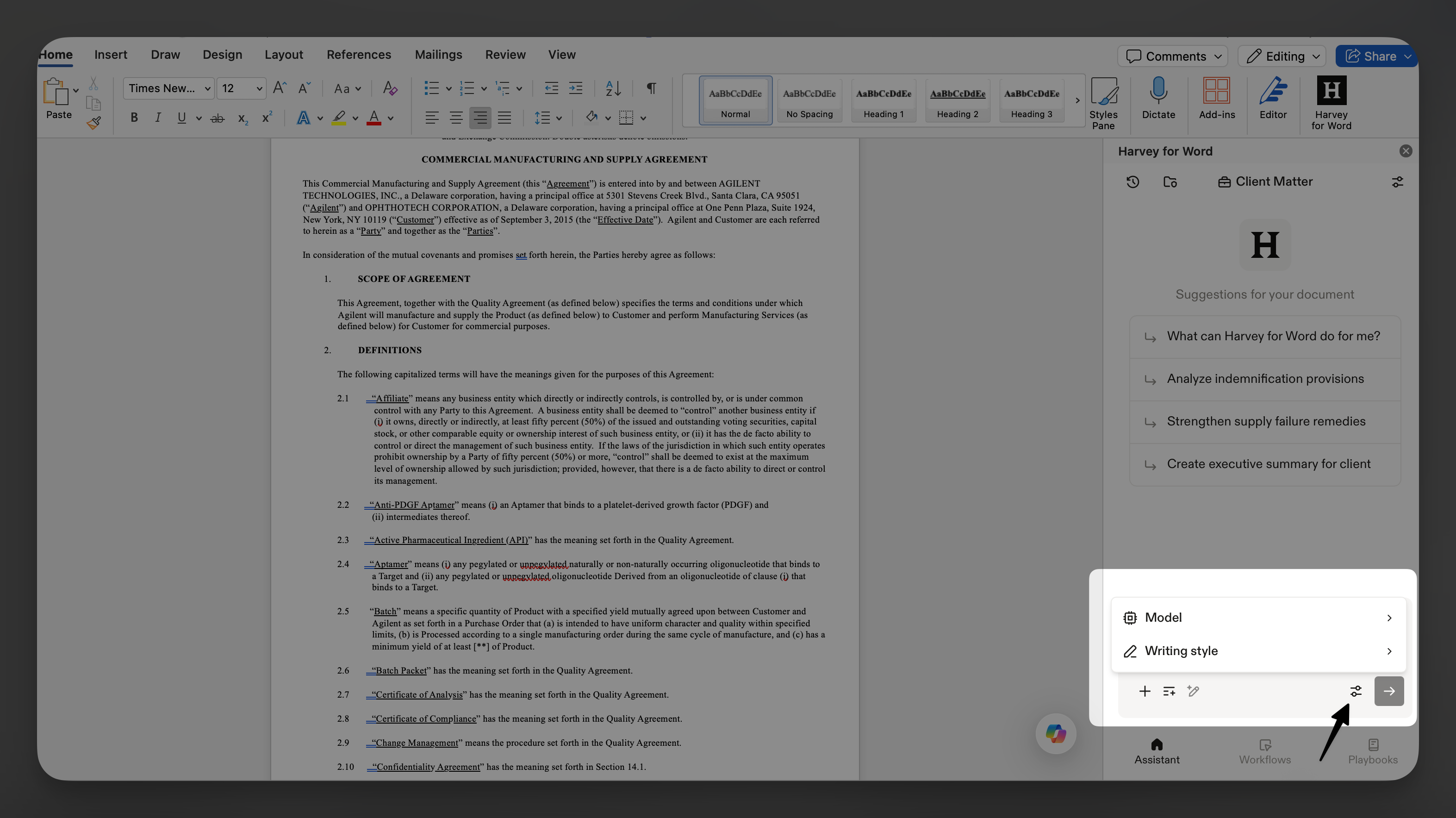
Note: To use these features, your Harvey admin must enable Model Selector and Writing Styles for your account. If you do not see these options, contact your Harvey administrator to request access.

What's New

Harvey for Word now supports two features previously only available in the web app: Writing Styles and the Model Selector. You can access both from the Harvey panel in Word, giving you the same control over tone and model selection that you have in the browser without leaving your document.

Feature

What It Does

Writing Styles

Select a writing style before generating output to match your firm's voice or your drafting preferences

Model Selector

Choose between available Harvey models directly in Word to best fit your task

Why It Matters

If you use these features in Harvey's web app, you can now easily incorporate them while working in Word.

How to Use Each Feature

Writing Styles
  • Open Harvey for Word in Word.
  • Before generating output, locate the Writing Style selector.
  • Choose your preferred style from the dropdown. The same styles available in the Harvey web app will be shown here.
  • Generate your output as usual. Harvey will apply your selected style.
Model Selector
  • Open the Harvey panel in Word.
  • Locate the model dropdown in the panel.
  • Select the model that best fits your task.
  • Proceed with your Harvey workflow as normal.

FAQs

Can I access all of Harvey’s web app models in Harvey for Word?

No. Harvey for Word uses a curated set of models selected specifically for drafting and redlining tasks. Not every model available in Harvey’s web app performs these workflows well, so only those that meet the bar for Word-specific tasks are offered within Harvey for Word.

What’s New

Agentic Word now supports advanced formatting controls that align with the structure and styling of your existing documents.

New capabilities include:

  • Creating and editing bulleted or numbered lists that match surrounding formatting
  • Automatically preserving indentation levels within structured documents
  • Applying inline text styling, including bold, italics, underline, and strikethrough
  • Inserting and editing footnotes directly within the document
  • Prompting Harvey to insert & edit comments

These improvements help generated and edited content integrate more cleanly into complex legal and professional documents.

Why It Matters

Legal documents often rely on precise formatting, structured lists, and citations to maintain readability and consistency.

With advanced formatting support, Agentic Word can now preserve more of your document’s existing structure automatically. This reduces the need for manual cleanup after generating or editing content and helps maintain consistency across highly formatted documents.

How to Use

Open Harvey for Word in a Microsoft Word document, and prompt Harvey as you normally would.

You can ask Harvey to rewrite content while keeping numbered list formatting, draft sections using the document’s existing heading styles, edit the text of existing footnotes, or add and reply to comments directly in the document.

Where supported, Harvey will preserve surrounding structure and styling automatically—including list hierarchy, indentation, paragraph styles, inline formatting, and line spacing—so updated content fits more cleanly into the rest of the document.

FAQs

Q: Do I still need to manually format generated content?

In many cases, no. Agentic Word now preserves much more of your document’s existing structure and formatting automatically, though you can still make manual adjustments if needed.

What’s New

Use the SCC Online integration to conduct Indian legal research directly in Harvey. This integration connects you to authoritative case law, statutes, and regulatory materials, enabling you to produce accurate, locally grounded work without switching tools.

With SCC Online in Harvey, you can:

  • Access trusted Indian legal content alongside your documents
  • Ground legal analysis and drafting in authoritative sources
  • Improve research efficiency with integrated, jurisdiction-specific data

You’ll be able to conduct more comprehensive research, strengthen your drafting, and prepare for litigation with greater confidence, all without leaving Harvey.

Important: Before you start, you will need an active SCC Online AI subscription and access to Knowledge Sources in Harvey (permission-dependent).

Why It Matters

SCC Online expands Harvey’s India research coverage beyond publicly available sources by incorporating a more comprehensive and authoritative set of Indian legal materials, particularly for case law.

This integration helps you:

  • Produce more reliable, well-supported legal analysis
  • Research Indian legal issues more efficiently
  • Draft with greater confidence using authoritative sources
  • Keep research and drafting workflows in a single workspace

How to Use

Refer to Using the SCC Online Integration for steps, tips, and

FAQ

s

.

What's New

Improve (Magic Prompt) is now available in the Harvey mobile app, allowing you to refine and structure prompts directly from your mobile device before sending them to Assistant.

With Improve on mobile, you can:

  • Transform rough ideas into structured, high-quality prompts
  • Improve prompt clarity with guided prompt refinement
  • Use the same Improve (Magic Prompt) workflow across web and mobile
  • Create stronger prompts while working away from your desktop
  • Maintain a more consistent Assistant experience across devices

The mobile experience mirrors the existing web functionality, making it easier to move between devices without changing how you work.

Why It Matters

Strong prompts lead to stronger outputs. Improve (Magic Prompt) on mobile helps you create clearer, more detailed requests without needing extensive manual editing.

This is especially useful when you are:

  • Drafting research requests on the go
  • Refining ideas between meetings
  • Preparing client-facing work away from your desktop
  • Working across both desktop and mobile devices throughout the day

By bringing the same guided prompting experience to mobile, Harvey helps you maintain productivity and consistency regardless of where you are working.

How to Use

  • Open the Harvey mobile app.
  • Start a new Assistant conversation.
  • Enter a rough idea, request, or draft prompt.
  • Use Improve to refine and structure your request before sending it to Assistant.
  • Review the generated prompt and submit it when ready.

The workflow is designed to match the existing web experience, making it easy to transition between devices.

FAQs

Q: What is Improve (Magic Prompt)?Improve (Magic Prompt) helps you improve and structure prompts before sending them to Assistant. It transforms brief or unstructured requests into clearer, more detailed prompts designed to produce stronger outputs.

Q: Will the mobile experience work the same way as web?

Yes. Improve (Magic Prompt) on mobile provides the same core functionality and workflow available in the web experience, optimized for mobile devices.

Q: When should I use Improve (Magic Prompt) on mobile?

Improve (Magic Prompt) on mobile is especially useful when drafting requests on the go, refining ideas between meetings, or working away from your desktop while still creating high-quality prompts.

Q: Can I use Improve (Magic Prompt) across both desktop and mobile?

Yes. The experience is designed to remain consistent across devices so you can move between desktop and mobile workflows more easily.

What’s New

Harvey Academy has launched its first course built specifically for law students: Harvey Law Schools: Preparing for Legal Work. The course is free for students at Harvey's partner schools and covers AI-powered legal workflows — from contract drafting and M&A due diligence to case research and deposition preparation. Students who complete it earn a shareable certificate of completion.

Learn more about the course here on our blog.

Why It Matters

Across the legal industry, organizations are increasingly seeking graduates with hands-on AI fluency. This course helps students build that practical experience before entering internships, clerkships, and first-year associate roles, turning familiarity with AI workflows into a differentiator during recruiting. The curriculum also emphasizes responsible AI use and judgment in ways that align with the ethical standards of legal practice.

How to Use

If you’re a student at a Harvey partner school, you can access the course now here.

For law students or faculty interested in participating in the program, reach out to us at lawschools@harvey.ai.

*Important: This course is only available to students and faculty with a Harvey workspace login. If your school is in the Harvey Law Schools program but hasn’t fully rolled out workspace access, you won't be able to take the course until you've been added. If you're unsure about your access status, please check with your school's library team.

What's New

Workspace Agent Builder now includes new export and table customization capabilities designed to help admins manage workflow agents more efficiently at scale.

Admins can now export workflow agent metadata directly from the Workspace Agents table into a downloadable spreadsheet for auditing, maintenance, and internal tracking.

The export includes workflow metadata such as:

  • Workflow status
  • Ownership information
  • Workflow metadata
  • Last run date
  • Embedded file count

You can also apply optional filters before exporting, including:

  • Date range filters
  • Workflow metadata filters

These updates make it easier to identify stale, orphaned, or inactive workflows across large workspaces and maintain workflow hygiene over time.

In addition to export functionality, admins can now customize the Workspace Agents table by:

  • Reordering columns
  • Hiding columns
  • Setting preferred default table views using the new Columns dropdown

The export is limited to workflow status, ownership, and maintenance metadata. It does not include analytics trends or per-user activity data.

Why It Matters

As organizations scale their use of workflow agents, managing outdated or inactive workflows becomes increasingly important.

These updates help admins:

  • Audit workflow agents more efficiently
  • Identify workflows that are no longer actively maintained
  • Improve workspace organization and governance
  • Support internal tracking and operational reviews
  • Customize table views to match team workflows and priorities

Additional metadata, such as last run date and embedded file count, gives admins more visibility into workflow activity and maintenance needs without exposing analytics or user-level activity data.

How to Use

Export Workflow Agents
  • Navigate to the Workspace Agents table.
  • Select Export.
  • Apply any optional filters, including:
  • Date range
  • Workflow metadata filters
  • Generate and download the spreadsheet export.

The export will include workflow metadata, along with the following additional fields:

  • Last run date
  • Embedded file count
Customize Table Columns
  • Open the Workspace Agents table.
  • Select the Columns dropdown.
  • Reorder columns as needed.
  • Hide or show columns to customize your default table view.

FAQs

Q: What information is included in the export?

The export includes workflow agent metadata from the Workspace Agents table, along with two additional fields: last run date and embedded file count.

Q: Can admins filter workflows before exporting?

Yes. Admins can apply optional filters, including time-based filters and workflow metadata filters, before generating the export.

Q: Does the export include workflow analytics or user activity data?

No. The export is limited to workflow status, ownership, and maintenance metadata. Analytics trends and per-user attribution remain available in the Analytics Dashboard.

Q: Who can export workflow agent data?

Workspace admins can export workflow agent metadata from the Workspace Agents table.

Q: Can I customize which columns appear in the workspace agents table?

Yes. You can reorder and hide columns using the Columns dropdown to create a customized default table view.

What’s New

Build with Harvey (Magic Builder) introduces a conversational workflow-building experience directly into Workflow Builder.

You can now describe the workflow you want in natural language, and Harvey generates the corresponding block-based workflow structure. After creating a workflow, you can continue refining and updating it through an ongoing conversation with Harvey instead of manually editing blocks one by one.

With Build with Harvey (Magic Builder), you can:

  • Create workflow agents by describing the process you want to automate
  • Refine workflows conversationally after the initial workflow is created
  • Reduce manual block-by-block configuration and testing
  • Make more targeted workflow updates compared to the existing Improve feature
  • Continue using the existing block-based Workflow Builder experience alongside conversational editing

Why It Matters

Many users found block-based workflow creation difficult to learn and time-consuming to maintain.

Build with Harvey simplifies workflow creation and maintenance by allowing you to describe workflows and changes conversationally instead of manually updating workflow blocks.

This helps you:

  • Build workflows faster
  • Prototype workflow ideas more easily
  • Reduce time spent maintaining workflows
  • Iterate on workflows as requirements evolve
  • Lower the learning curve for creating custom workflow agents

How to Use

  • Click Build, and select Agent Builder.
  • Click Create workflow agent, and choose between Agent Builder or Workflow Builder.
  • Describe the workflow you want to create in natural language. For example, you can describe:
  • The types of documents to process
  • The sequence of workflow steps
  • Conditional logic or branching behavior
  • Desired outputs or deliverables
  • Review the generated workflow structure in Workflow Builder.
  • Continue refining the workflow by chatting with Harvey. You can request updates such as:
  • Adding workflow steps
  • Modifying workflow logic
  • Updating prompts or instructions
  • Adjusting outputs
  • Reorganizing workflow structure
  • Test and finalize your workflow as needed.

You can continue using manual block editing at any time alongside conversational workflow creation and refinement.

FAQs

Q: How Is Build with Harvey (Magic Builder) different from Words to Workflows?

Words to Workflows helps generate an initial workflow from a prompt. Build with Harvey extends this experience by allowing you to iteratively edit and refine workflows through ongoing conversation with Harvey after the workflow has been created.

Q: Does Build with Harvey Replace workflow builder?

No. The existing Workflow Builder experience remains fully available. You can continue building workflows manually with blocks while also using conversational workflow creation and editing capabilities.

Q: What problem does this solve for users?

Many users found block-based workflow creation difficult to learn and time-consuming to maintain. Build with Harvey makes workflows easier to create, understand, and refine by allowing you to describe changes conversationally instead of manually editing workflow blocks.

What’s New

Workflow agents can now create and edit Word documents directly using a new Document drafting block in Workflow Builder.

This update introduces:

  • Document creation and editing within workflows
  • Generate new Word documents
  • Modify existing documents as part of a workflow
  • New Document drafting block
  • Define how documents are structured and updated
  • Control document outputs within the workflow
  • Upload document(s) to edit directly from your computer or vault
  • Upload supporting context files to reference while editing document(s) to edit
  • Template-driven document generation
  • Embed standardized templates
  • Ensure consistent formatting and structure
  • Instruction and knowledge integration
  • Guide document content with embedded instructions
  • Use knowledge sources and uploaded context files to improve accuracy and completeness
  • Reusable workflow agents
  • Share agents across teams
  • Standardize repeatable document processes

Why It Matters

Document workflows often require manual exporting, formatting, and rework. This update moves those steps into the workflow itself.

  • Reduce manual work: Eliminate repetitive formatting and document setup
  • Improve consistency: Ensure outputs follow the same structure and standards
  • Increase speed: Generate complete, ready-to-use documents in one flow
  • Scale team workflows: Reuse agents to apply the same process across matters and teams

This allows your organization to move from manual document preparation to structured, repeatable document workflows.

Important: Users must still export edited documents to review and accept or reject redlines in Word.

How to Use

  • Open Workflow Builder
  • Create or edit a Workflow agent
  • Add a Document drafting block
  • Configure the block:
  • Upload or reference one or more document(s) to edit, such as a template or precedent
  • Upload supporting context files from your computer or vault (optional)
  • Add instructions for document structure and content
  • Run the workflow to generate or modify the document

Tip: Duplicate existing workflow agents that use the older version of the Document editing block before updating to the new experience.

To update an existing workflow agent:

  • Duplicate the workflow agent containing the older Document drafting block
  • Add a new Document drafting block with the updated UI
  • Move over the documents and instructions from the old block
  • Delete the older Document drafting block
  • Test the updated workflow before publishing changes

Known Limitations

  • This document drafting block only supports editing .docx files.
  • Users will experience higher latency if they chain together multiple Document drafting blocks in a single workflow agent. For this reason, we recommend scoping down the number of documents to edit in a single workflow agent. We are making continuous updates to improve latency here.

FAQs

Q: What types of documents can Workflow agents create or edit?Workflow agents will be able to generate and modify a wide range of Word documents, including standardized templates such as compliance forms, term sheets, and other structured legal or professional documents.Q: How do teams control the structure and content of generated documents?Teams will be able to configure agents using the Document drafting block, embedding templates, instructions, and knowledge sources that guide how documents are created and updated.Q: How does this relate to existing Assistant and Word Add-In capabilities?This functionality will build on existing document generation and editing capabilities, allowing teams to incorporate them into custom Workflow agents and tailor how they are applied across different use cases.

Last Checked
2h ago
Latest
Jun 3, 2026
Tracking since May 1, 2024