Exportable Vault File Log
What’s New
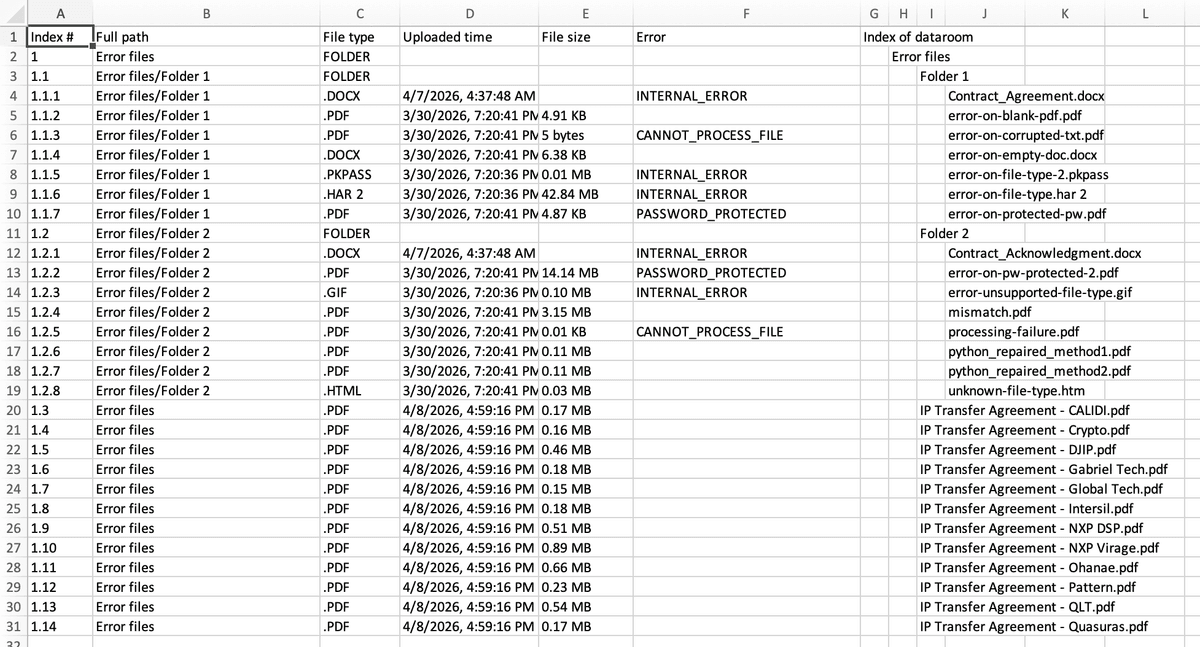
You can now export a full file log from any Vault, providing a comprehensive view of all uploaded files and their associated metadata.
Key capabilities
- Full Vault visibility: Export a complete list of files—not just those with errors.
- Structured metadata included: Each export contains key fields for analysis and auditing:
Field
Description
Index #
Unique identifier for each file
Full path
Folder location within the Vault
File type
File format (e.g., PDF, DOCX)
Uploaded time
Timestamp of upload
Size of the file
Size of the file
Error (if any)
Associated processing errors
Dataroom index
Indexed file reference
- Offline access and sharing: Download and analyze file inventories outside the platform.
Why It Matters
Managing large Vaults can make it difficult to quickly assess file coverage, identify issues, or support audits.
This update provides:
- Complete auditability — Review every file in one export
- Operational efficiency — Filter, sort, and analyze metadata offline
- Improved transparency — Identify missing, duplicate, or problematic files
- Scalability — Handle large volumes of documents without manual tracking
How to Use
- Navigate to the Vault you want to review
- Open the File Log Export option
- Click Export File Log
- Download the generated file (CSV or similar format)
- Open in your preferred tool (e.g., Excel) to filter or analyze
FAQ
Q: How is this different from the download file error log?The error log only includes files with issues. The file log export includes all files in the Vault, with errors shown where applicable.
Q: Can I filter or customize the export?Not currently. You can filter and analyze the data after downloading using external tools.
Q: Does this update change how files are stored or processed?No. This feature only adds visibility through export—it does not affect storage or processing behavior.
Q: What metadata will be included in this file log?
- Index #
- Full path
- File type
- Uploaded time
- File size
- Error (if any)
- Index of dataroom (file names indexed)
- Example:
Fetched June 8, 2026