Media Editor Modal experiment ready for testing
The addition of a free-form image cropper in the Block Editor has been a long-standing feature request. A Gutenberg experiment that integrates this and other image editing features in a “Media Editor Modal” is ready for testing and feedback.
What is it?
The Media Editor Modal replaces the existing inline cropping tool in the Block Editor. The modal pattern keeps the familiar Crop button entry point, and brings freeform and aspect-ratio cropping, flip, fine-grained and snap rotation, and metadata editing into one dedicated workflow.
Under the hood, the modal consumes a core collection custom tools and components that will eventually live in a WordPress package. This will remove the reliance on third-party cropping libraries.
Why the Change?
Image cropping in the Block Editor hasn’t changed much since its introduction. The existing inline image cropper is built on top of the react-easy-crop library. This implementation has a couple of constraints:
- it’s limited by what’s achievable in the editor canvas and block toolbar, and
- the library itself has a narrow set of features.
Why build our own library? Well-maintained, open source alternatives that do most of what users expect are few and far between. Furthermore, there’s a general preference for a WordPress-native surface that:
- has all the features we want “out of the box” such as aspect ratios, freeform cropping handles, intuitive zooming, flip and rotation,
- includes all the usability features we’d expect such as touch and keyboard support, and
- is extensible in ways idiomatic to the WordPress ecosystem.
There was an attempt to build a custom, editor-first cropper component, but it was abandoned. Rather than developing separate, one-off flows across blocks, the Media Editor Modal aims to provide a consistent foundation for both a new Media Library experience and various editor contexts, and also serve as platform for building more sophisticated experiences later.
How to Test
If you’re familiar with the Gutenberg plugin development environment, you can check out trunk right now and enable the Media Modal experiment from the experiments page at /wp-admin/admin.php?page=experiments-wp-admin.

The quickest way to test is via Playground. Here’s a link that loads up Playground with Gutenberg Trunk and the Media Editor Modal experiment already active:
Test the Media Editor Modal in Playground
Suggested Testing Flows
The steps are provided just in case you need structure. Don’t feel any need to follow any or all of them.
The important question is whether the modal is solid enough as a replacement for the Image block crop flow, and whether you notice any bugs, UX gaps or unexpected behaviors.
Basic Crop Flow
- Open the modal from an Image block.
- Resize the crop area.
- Pan and zoom the image.
- Rotate or flip the image.
- Save.
- Confirm the block updates to use the edited image.
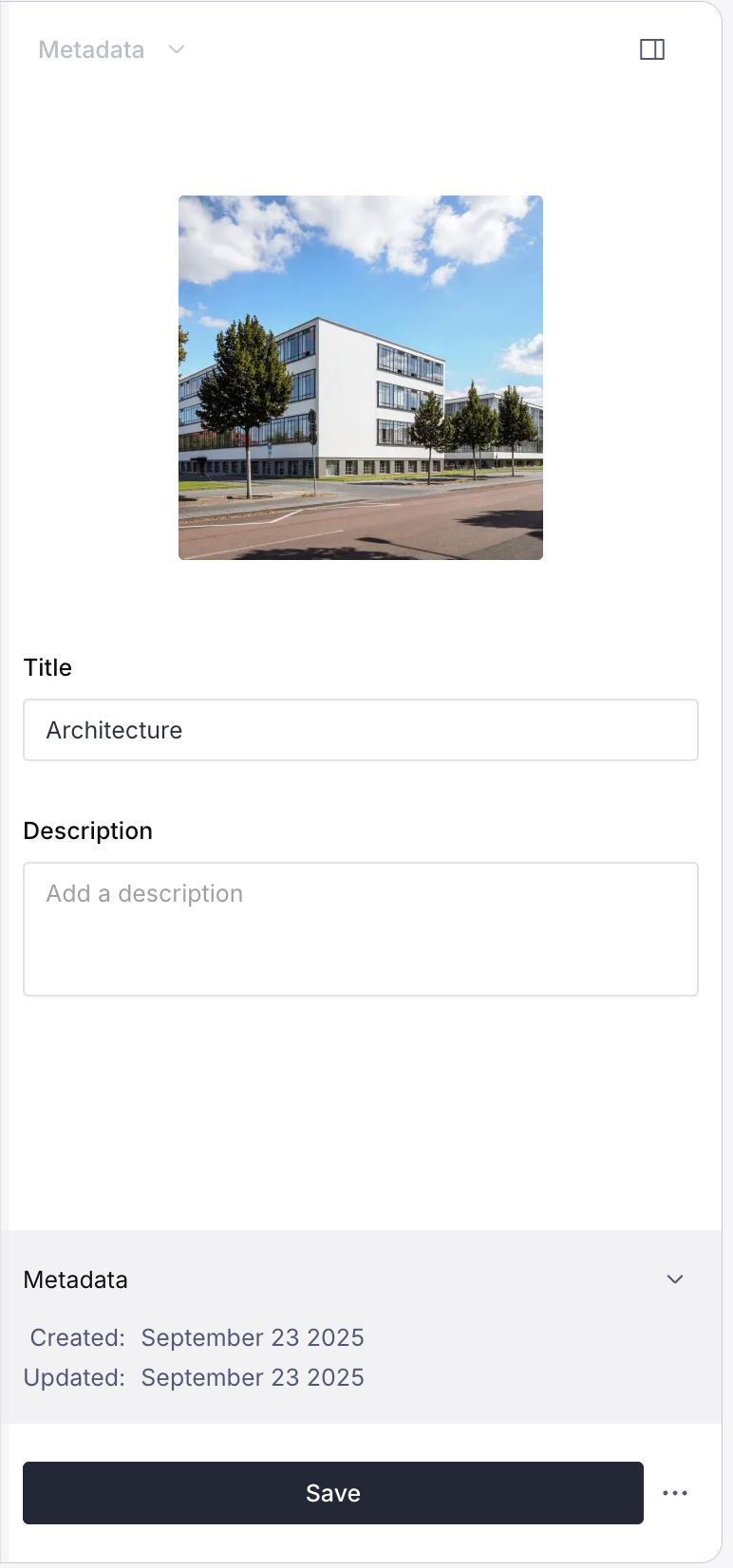
Details Editing
- In a saved post with a title, upload or insert an image.
- Open the modal from the Image block.
- Switch to the Details tab.
- Confirm Author and Attached to fields are populated with your author handle and the current post’s title.
- Update alt text and caption.
- Save.
- Confirm the media item updates.
- Confirm the Image block updates when its existing alt/caption values were empty or matched the original media values.
Existing Custom Block Values
- Add an Image block.
- Manually enter custom alt text or a custom caption in the block.
- Open the media editor modal.
- Change the attachment’s alt text or caption.
- Save.
- Confirm custom block-level values are not unexpectedly overwritten.
Keyboard
- Open the modal.
- Use Tab to move through the crop area, crop handles, toolbar controls, sidebar controls, Save, Cancel, and Close.
- Use arrow keys to move or resize the crop area.
- Confirm focus is visible and does not get lost.
- Try undo/redo with keyboard shortcuts.
- Confirm Escape behaves as expected when there are unsaved changes.
Touch Gestures
- On a touch device, open the modal from an Image block.
- Test drag panning, pinch zoom, and crop area handle dragging for responsiveness and smoothness.
- Ensure toolbar actions like rotate, flip, undo, redo, and reset are tappable.
Sharing your Feedback
Comments on this post are a great way to share feedback, but if you’d like to jump into Gutenberg feel free to leave feedback on this tracking issue as it’s the main one covering current tasks for the experimental modal. We’d love to know for example:
- Did the modal open where you expected it to?
- Was cropping understandable without extra instruction?
- Did anything feel slower, confusing, or broken?
- Did the image tools, including Save and Cancel behave as you’d expect?
Out of Scope
The goal is to make the basic crop/edit workflow solid first, not to ship every image editing feature. Some related work is still being explored separately, for example:
- Manual pixel crop controls.
- Restoring original image.
- Improving undo/redo history states.
- Broader image editor extensibility for image filter and/or AI integration options.
Thank you for making it this far, and thanks in advance for testing.
Props to @andrewserong and @isabel_brison for helping to write this post.
Fetched May 22, 2026