Dashboards
Create dashboards to track key metrics for your team or workspace.
Dashboards let you combine data from different insights into a single page view. Use them to monitor operational health across teams and workflows or build reporting dashboards to show how resources are spent across initiatives and projects.
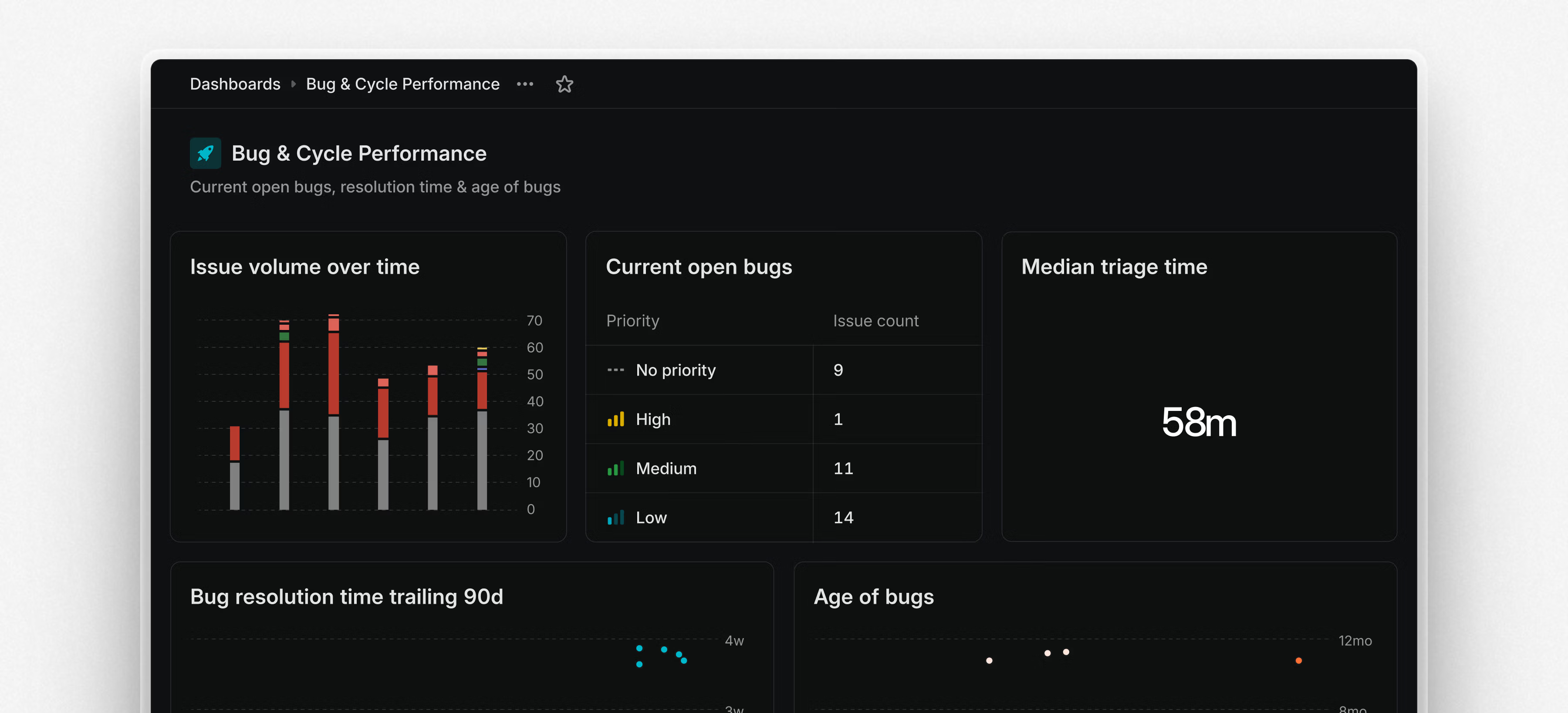 Dashboards are modular and customizable. You can display insights as charts, tables, or single-number metrics, depending on your needs. Dashboards can be filtered to target a specific team or scope. Drill into specific insights and segments to view the underlying issues and examine patterns or outliers. From there, take action—assign work, update statuses, or triage directly from the issue list.
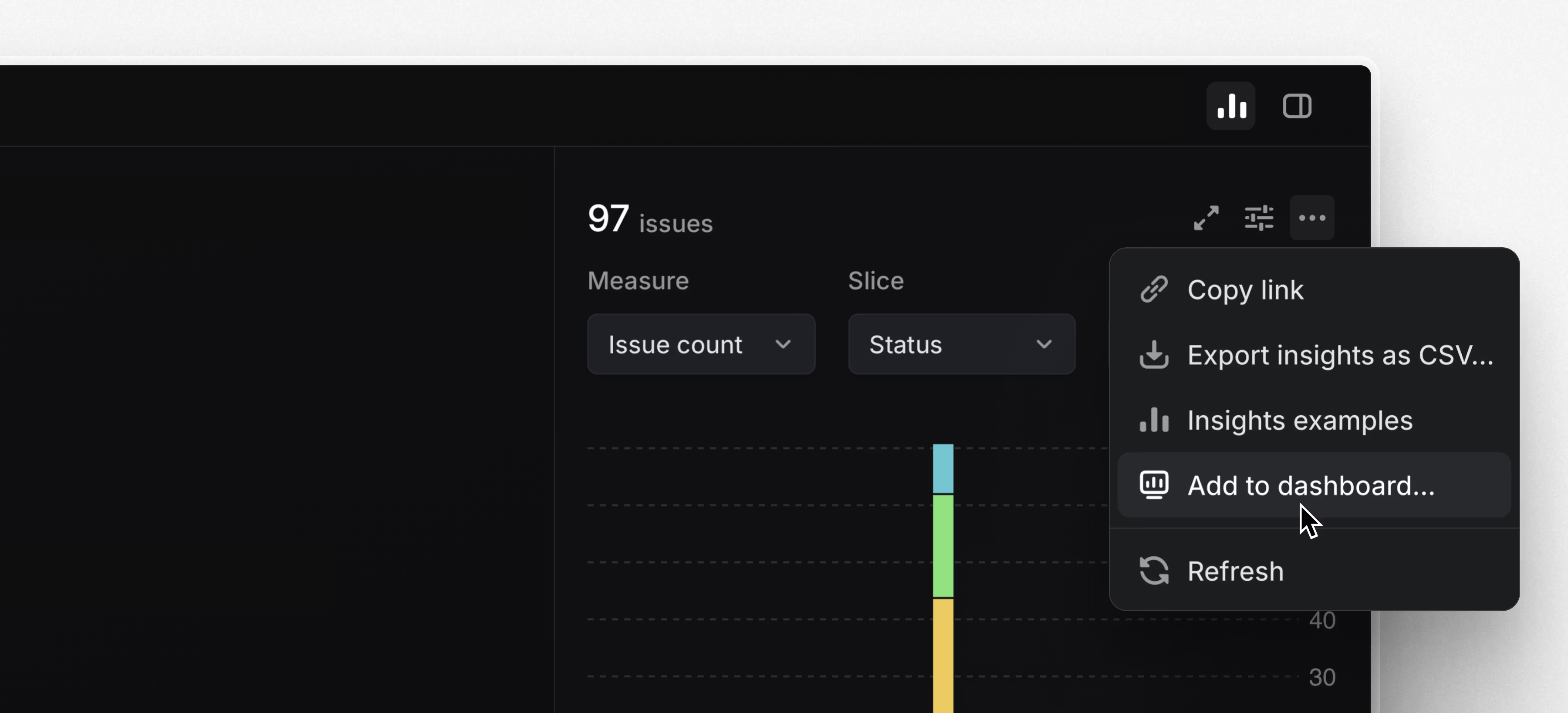
You can share dashboards with your workspace, to a specific team, or kept private as personal dashboards. To create your first dashboard, go to the Dashboards tab under Views or start from an existing insight and choose Add to dashboard.
 Dashboards are available on the Enterprise plan or with an enterprise trial starting today. Learn more in the docs and watch the demo video below.
Quick navigation in Settings
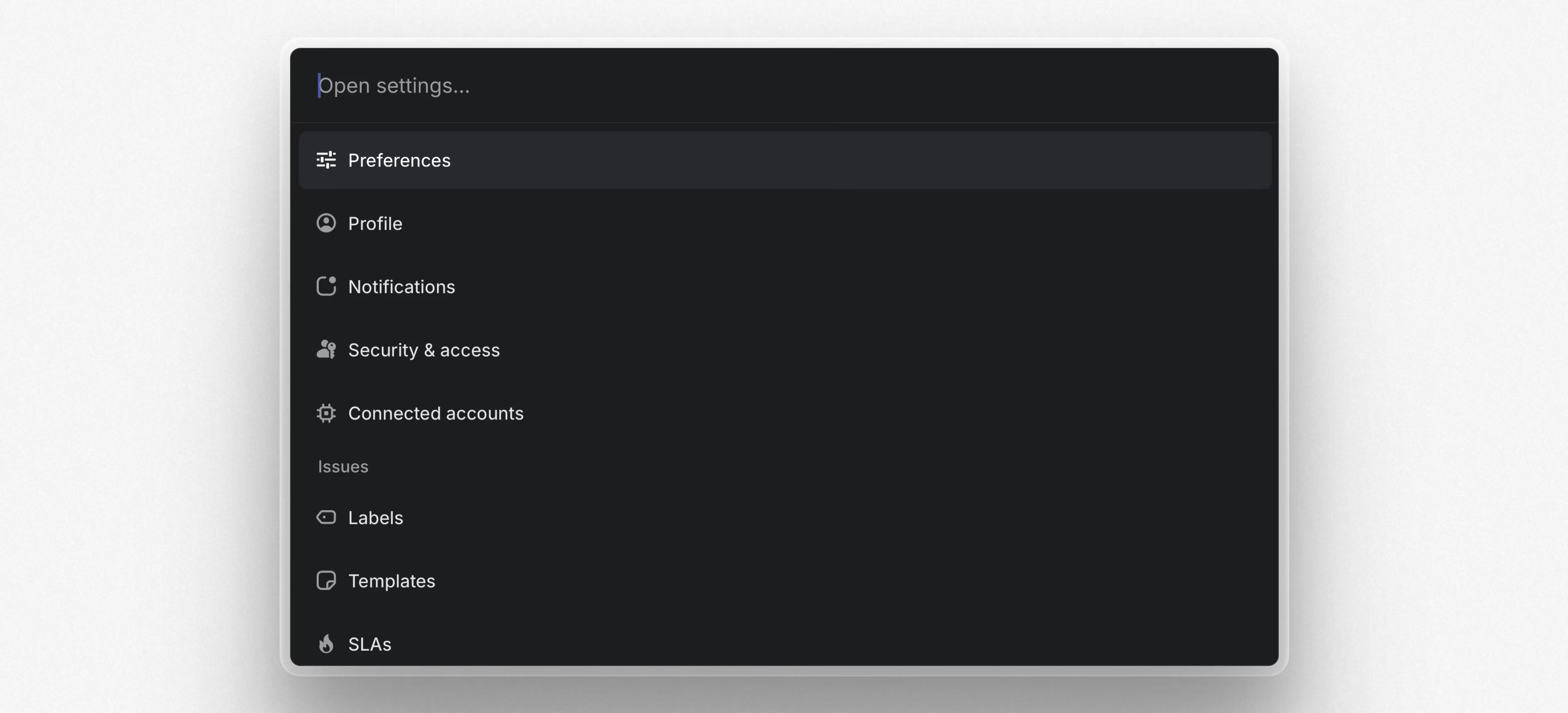
Navigate between pages in Settings using the command menu (Cmd/Ctrl K). From anywhere else in the app, use O then S to find and open a specific Settings page.
Notion AI Connector
Search across Linear projects and issues directly from Notion AI. Once you’ve set up the integration, Notion AI will have access to all project and issue details including the title, description, assignee, creator, and issue comments.
Improvements (10)
Asks: When a Linear user creates an Ask from Slack, they are now automatically subscribed to the Linear issue if they have access to the issue’s team
- Customer Requests: It’s now possible to filter by important customer count on issues and projects views
- Customer Requests: Added a due date and target date display option for customer page requests
- Customer Requests: Added automatic duplicate name detection when creating customers
- Filters: You can now filter issue views by invited users
- GitHub: We now automatically create a personal GitHub integration for the admin installing GitHub in the Linear workspace
- Project templates: Improved the ability to clear the template that was applied while creating a project
- Projects: It’s now possible to select multiple projects and add or remove teams in bulk
- Settings: Improved layout of settings pages on devices with small screens
- Improved the ability to dismiss the app status banner, which shows up in case of service interruptions
Fixes (5)
- Desktop: Fixed the scroll position being reset when switching tabs after navigating using the command menu
- Editor: Fixed resizing columns after scrolling a table horizontally
- Editor: Fixed creating code blocks from ````` in nested lists
- Pull request reviews: Fixed pull request review comments not syncing properly in some scenarios
- Triage: Fixed a bug where a team’s explicit priority requirement for an issue to leave Triage could be bypassed if the issue was previously in Triage in a different team
MCP server (3)
- Added pagination to
list_issues - Replying to comment threads is now supported
- Fixed text content being truncated in responses unnecessarily
Keyboard shortcuts (1)
- When in Settings, use Cmd/Ctrl K to navigate between pages
- O then S to navigate to a specific Settings page when outside of Settings
Fetched April 13, 2026